
The UP DigiShakti Student Login allows eligible students to securely access their accounts and manage verification and tablet or smartphone allocation services. This page provides a comprehensive, step-by-step login guide to help students navigate the process smoothly and complete required actions without confusion.
Official Notice: Do not trust unofficial platforms that claim to offer the scheme’s services. Always verify the website URL before logging in.
What is the DigiShakti Student Login?
The DigiShakti Student Login is the official access system that allows eligible students to enter their personal dashboard. The dashboard shows academic information uploaded by the institution under this scheme.
The login system is institution-based, meaning:
- Students cannot create accounts manually.
- Login access becomes active only after the college has uploaded the data.
- Academic details must match institutional records exactly.
This structured login system ensures authenticity and prevents unauthorised access.
Why DigiShakti Student Login is Important?
The DigiShakti student login process is important because it gives students direct access to their institutional records on the portal.
Through login, students can:
- Confirm that their data is available
- View academic profile information
- Ensure correct institution selection
- Access their student dashboard securely
Without logging in, students cannot verify whether their academic details are properly recorded in the system.
Benefits of Using the DigiShakti Student Login
Using the official login system provides several advantages:
- Direct access to verified academic records
- Secure identity validation
- Transparent institutional data display
- Real-time dashboard visibility
- Reduced dependency on third parties
This structured system increases trust and transparency for students.
Step-by-Step DigiShakti Portal Student Login Process
Follow these steps carefully to avoid login errors.
Step 1: Visit the Official Portal
Open a trusted browser and visit the official Portal’s website. Always verify the website URL (https://digishakti.up.gov.in/) before entering any information to avoid fake platforms.
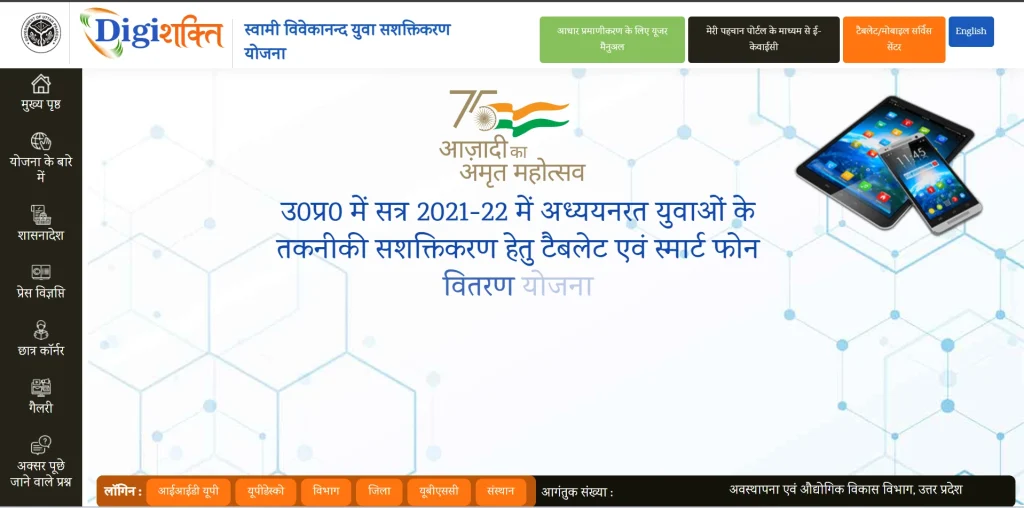
Step 2: Click on Student Login
On the homepage, locate the login option. Clicking this button will redirect you to the login section where you can enter your academic credentials.
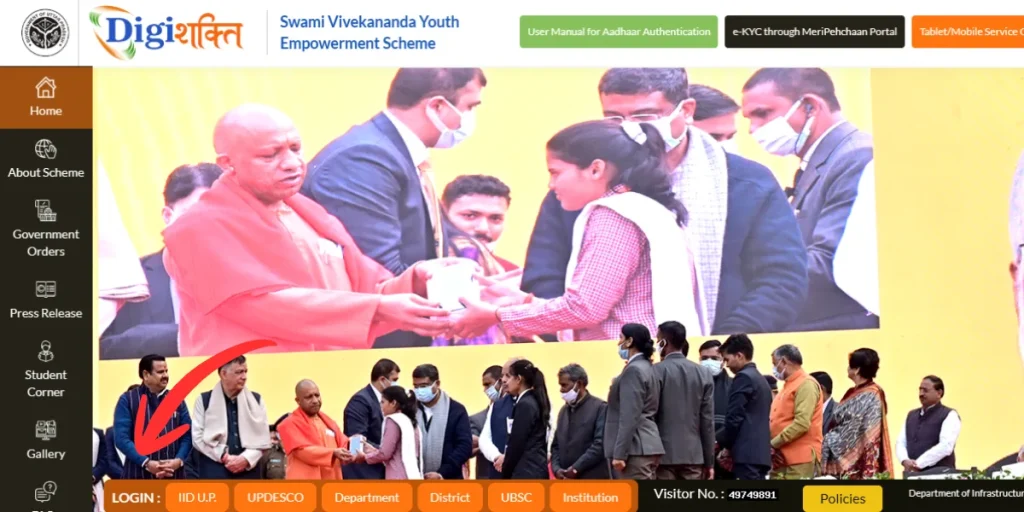
Step 3: Fill in Your Student Information
You must select:
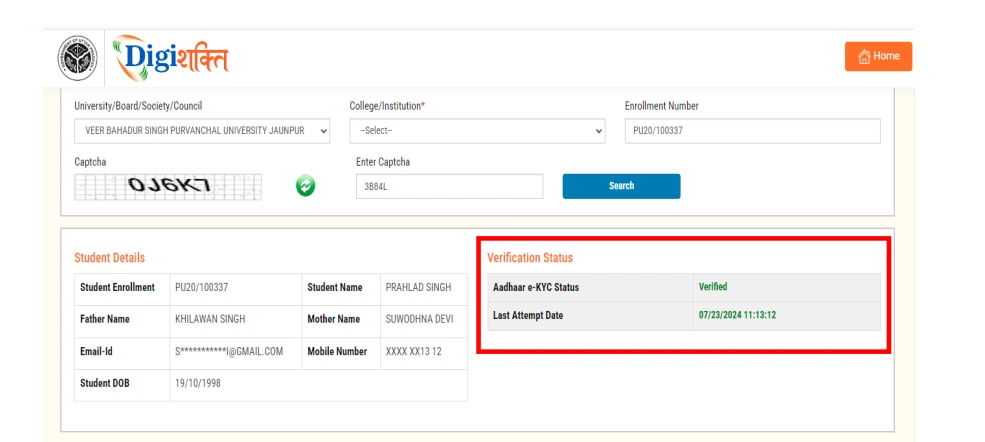
- Your University / Board / Council
- Your College / Institution Name
- Enter your student enrollment ID
- Enter the captcha code shown
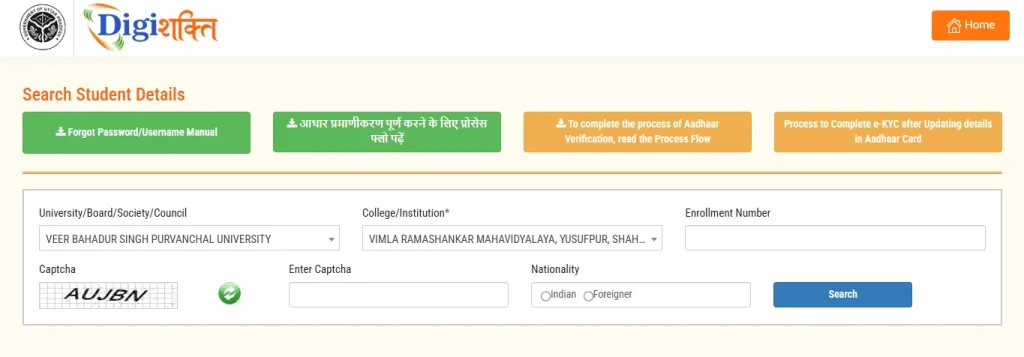
Selecting the correct institution is extremely important. A wrong selection can prevent a successful login even if your details are correct.
Step 4: Complete OTP Verification (If Required)
In some cases, OTP verification may be required. Enter the OTP sent to your registered mobile number within the given time.
OTP verification ensures secure and authorised access.
Step 5: Access Your Student Dashboard
After successful verification, you will be redirected to your student dashboard. This confirms that your login has been completed successfully.
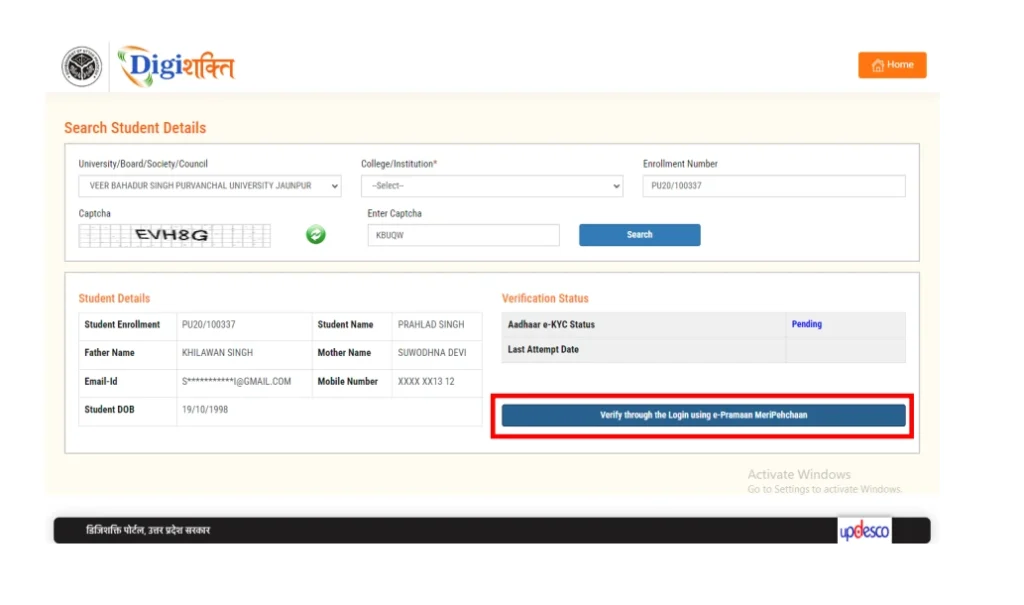
The login becomes active only after your institution uploads verified data. Use correct academic details and access the official DigiShakti Portal only.
First-Time Access vs Repeat Login
The procedure varies slightly depending on your DigiShakti Student login status.
First-Time Access
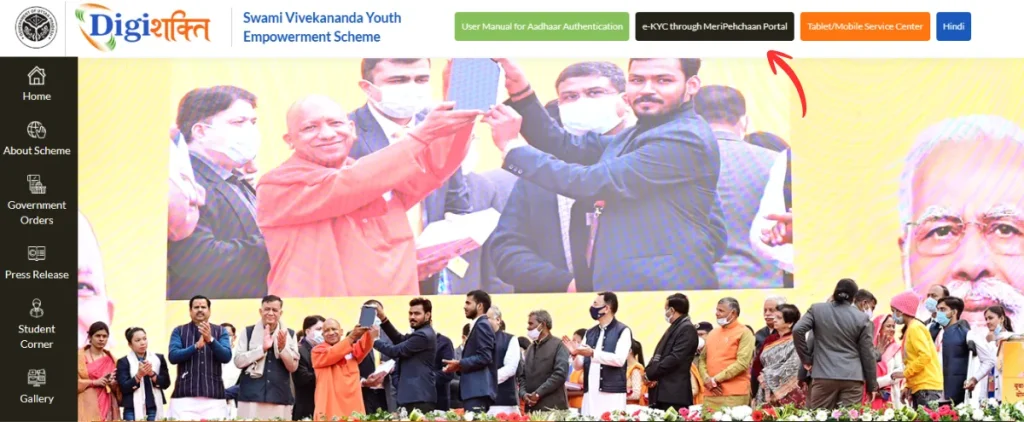
- Complete identity verification through MeriPehchaan after the initial search.
- Select the “e-Pramaan MeriPehchaan” verification option.
- Finish the Digishakti eKYC steps as guided in the section.
Repeat Login
- Provide your login credentials.
- View your verification progress.
- Track distribution updates related to tablets/smartphones.
Details Required for Login
Before attempting login, keep the following ready:
- Correct Roll Number
- Enrollment / Registration Number
- Exact Institution Name
- Registered Mobile Number (for OTP)
Preparing these details in advance ensures a smooth login process.
Common Student Login Errors
Understanding common login issues can help you avoid unnecessary confusion.
1. Data Not Found
This appears when your institution has not yet uploaded your records. Since the portal works on institutional data submission, login access depends entirely on your college.
2. Invalid Roll or Enrollment Number
This error usually occurs due to typing mistakes. Always cross-check numbers carefully before submitting.
3. OTP Not Received
OTP issues may happen due to network problems or inactive mobile numbers. Ensure your registered mobile number is active and within coverage.
4. Portal Not Opening
Sometimes the website may load slowly due to heavy traffic. Try refreshing the page or accessing it during non-peak hours.
DigiShakti Student Login on Mobile and Desktop
The Portal is compatible with:
- Android smartphones
- iPhones
- Laptops
- Desktop computers
For better visibility and fewer typing errors, many students prefer using a desktop or laptop. However, mobile login is also smooth when using a stable internet connection.
Security Guidelines for Safe DigiShakti Login
Maintaining login security is essential. Follow these best practices:
- Never share OTP with anyone
- Avoid using public cyber cafés
- Log out after accessing your dashboard
- Do not share academic credentials publicly
- Use a personal device whenever possible
These precautions help protect your academic data and prevent misuse.
When to Attempt DigiShakti Student Login?
You should try logging in only after confirmation from your institution. Attempting to log in too early may result in “record not found” messages.
The ideal time to log in is:
- After the official announcement by your college
- Once the data upload confirmation is provided
- When the login window is active
Being patient and informed reduces login frustration
When Is the Right Time to Use DigiShakti Login?
Understanding the correct timing for accessing the portal can prevent unnecessary confusion for students. Many students log in at random without knowing when the system becomes active for them.
You should attempt to log in only in the following situations:
- After the official notice from your college regarding the portal data upload
- When your institution confirms student record submission
- During the active login window announced by the authorities
- When instructed by your department or nodal officer
Trying to log in before these confirmations may show record-related messages, even if you are eligible.
Best Practices for Smooth Digishakti Student Login
To ensure successful access every time:
- Carefully select your university and college
- Enter the roll number exactly as per the records
- Avoid rushing while typing
- Keep your phone ready for OTP
- Use a stable internet connection
Consistency and accuracy are key to a smooth login experience.
How DigiShakti Login System Works?
The login system follows a structured process:
- The institution verifies eligible students
- Academic data is uploaded to the portal
- The login access becomes active
- Student enters credentials
- Dashboard access is granted after validation
Because of this institutional control, manual account creation is not available. This ensures reliability and prevents duplicate entries.
What You Can Do After DigiShakti Student Login?
After a successful login, students can:
- Finalise e-KYC verification
- View current verification progress
- Confirm eligibility for device distribution
- Modify personal contact information
- Track tablet or smartphone dispatch updates
For security reasons, ensure you sign out before leaving the portal.
Frequently Asked Questions (FAQs)
Q1: Can I log in without an enrollment number?
No, enrollment or roll number is required.
Q2: What if the login shows invalid details?
Check spelling and numbers carefully. Contact your college if the issue continues.
Q3: Can I change my login credentials?
No. Login details are based on institution records.
Q4: Is DigiShakti Student Login free?
Yes, it is completely free.
Q5: How many times can I try logging in?
You can try multiple times, but avoid entering the same wrong entry repeatedly.